
Typing supplier invoices in by hand
The Invoice app reads each supplier invoice from an email, a photo or a file, checks the figures add up and takes it through two approvals to payment. Nobody types it in again.
The retyping behind every supplier invoice
Most teams key each invoice into the accounts by hand, then chase it through approval by email. The Invoice app does the reading and the tracking for you.
Every invoice keyed in by hand
- Supplier, number, date, totals and lines read for you
Totals that don’t add up, found weeks later
- Lines checked against the invoice net before it goes in
Splitting one bill across vehicles by hand
- Each line given to a vehicle as it is submitted
“Where is that invoice?” emails
- Every invoice shows its status, from pending to paid
The same invoice entered twice
- Duplicates caught by invoice number and supplier
One invoice, from a photo to paid
Five short steps on the phone, then the office takes it from there.
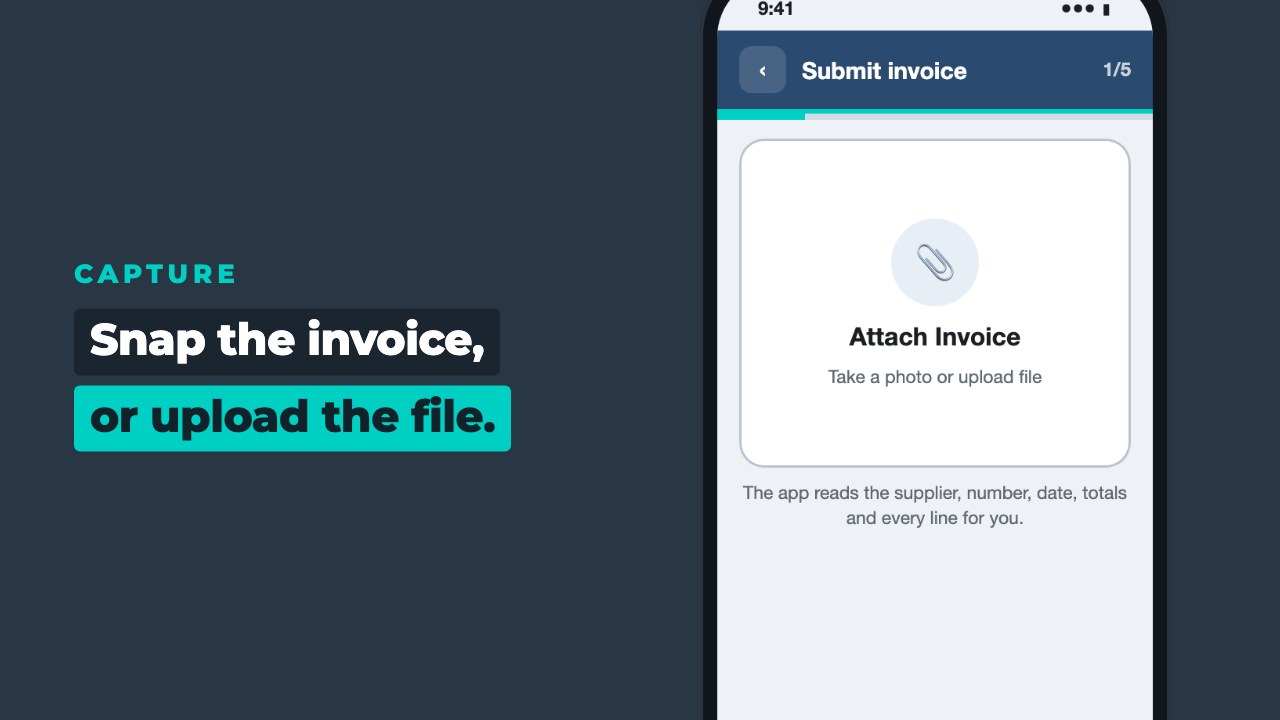
Snap or upload
Tap Attach Invoice, then take a photo of the paper invoice or pick the file from the phone.
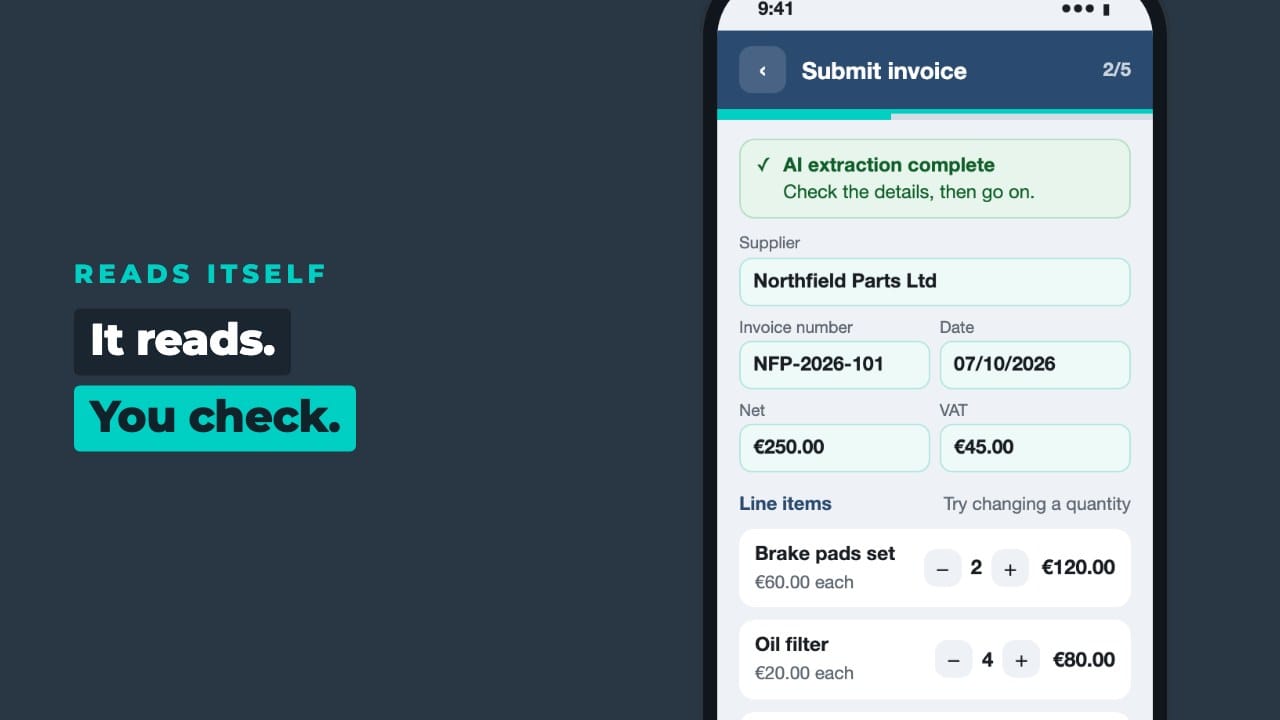
The details fill themselves
The app reads the supplier, number, date, totals and every line in about 20 seconds. Anything it is not sure of is marked for a check, and any field can be changed.
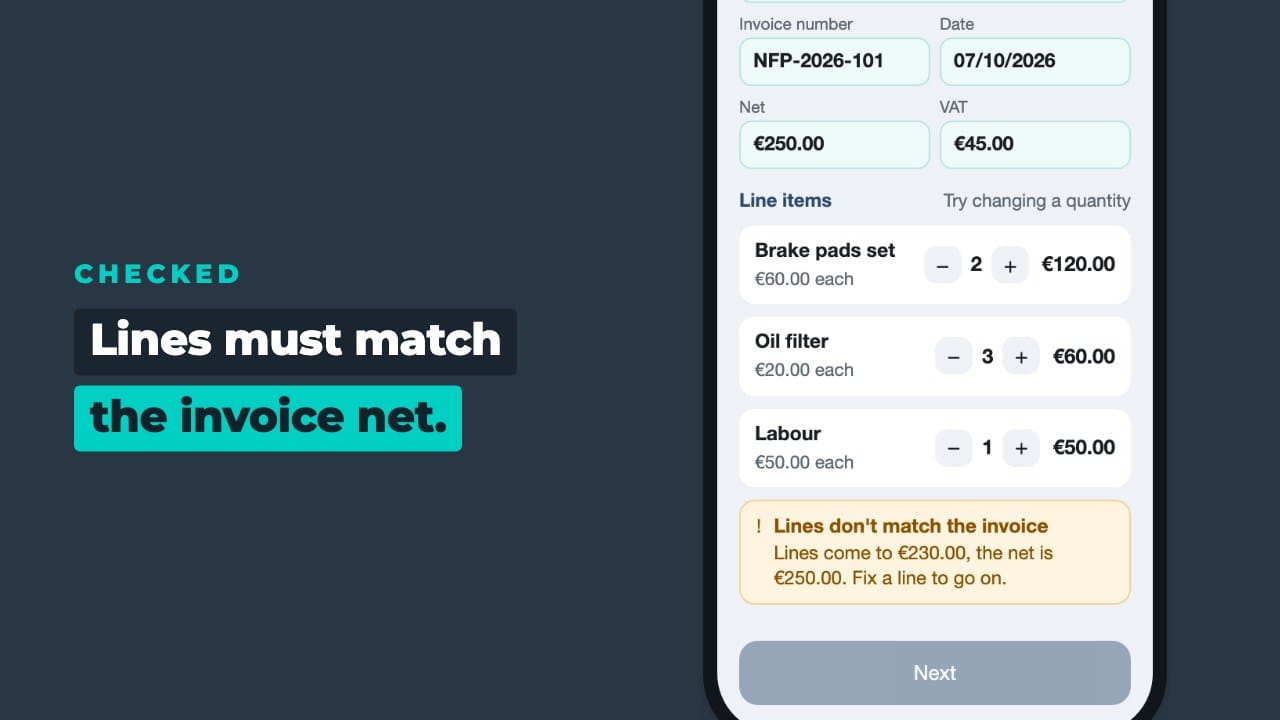
Checked before it goes in
The lines are checked against the invoice net. If they don’t match, the app says so and waits.
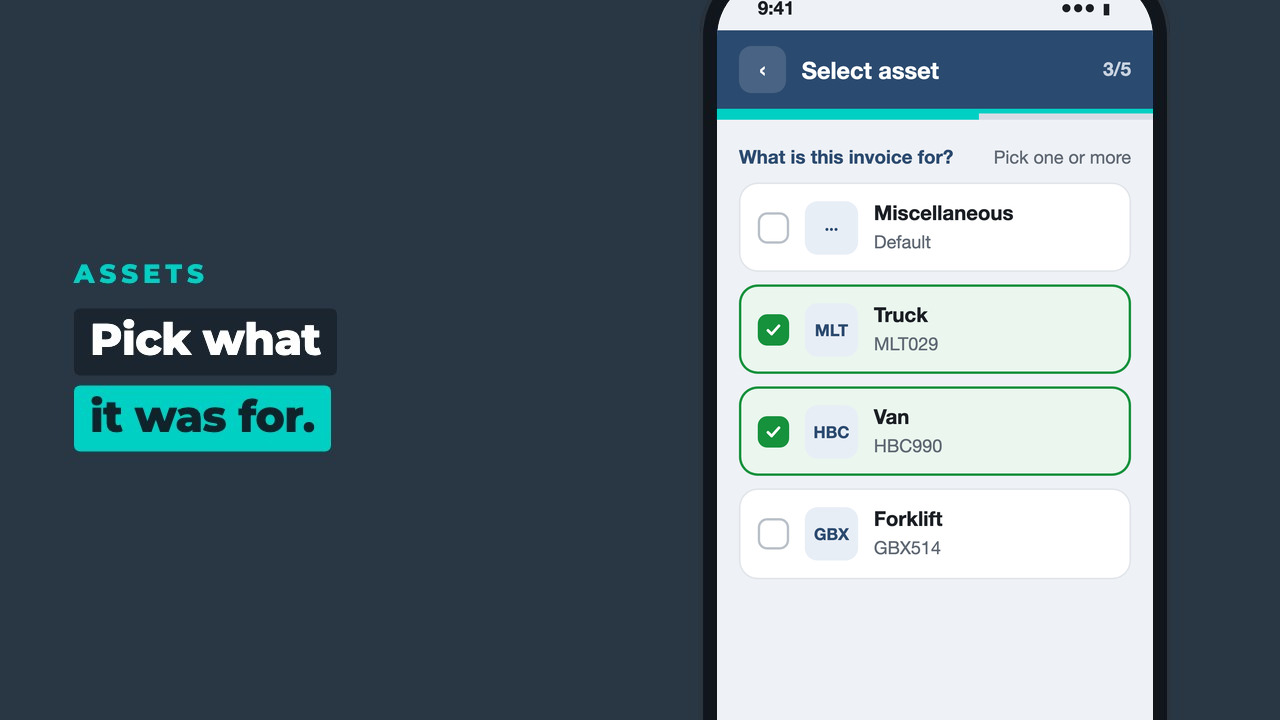
Pick what it was for
Choose the vehicle or asset from a list. Miscellaneous is there for everything else.
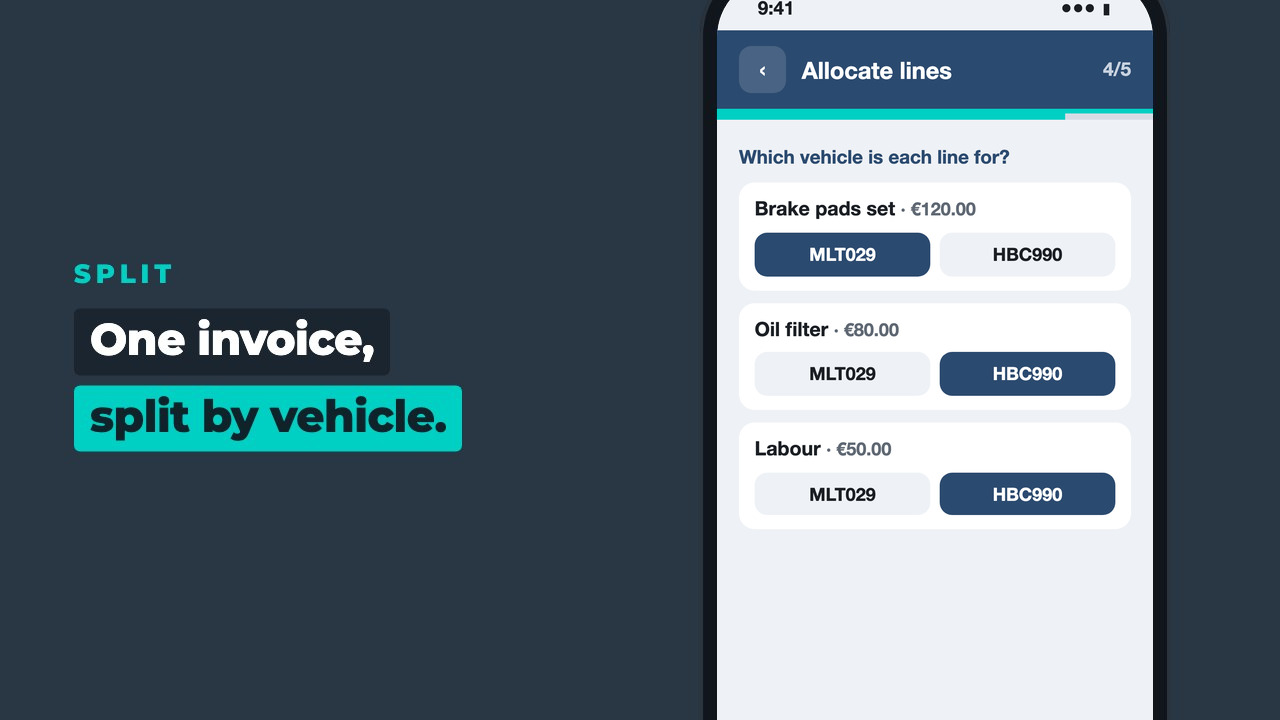
Split across vehicles
One invoice for several vehicles? Give each line its vehicle, and the costs land in the right place.
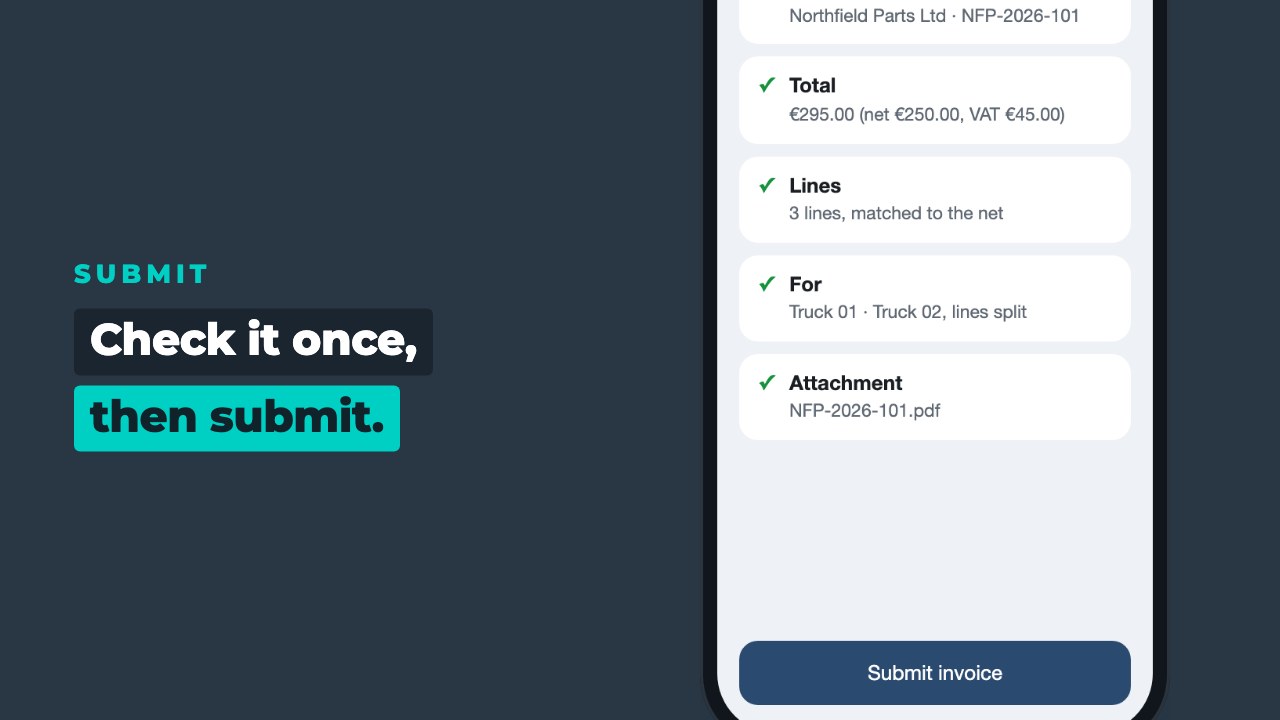
Check and submit
One look at the summary, then submit. The next invoice can start straight away.
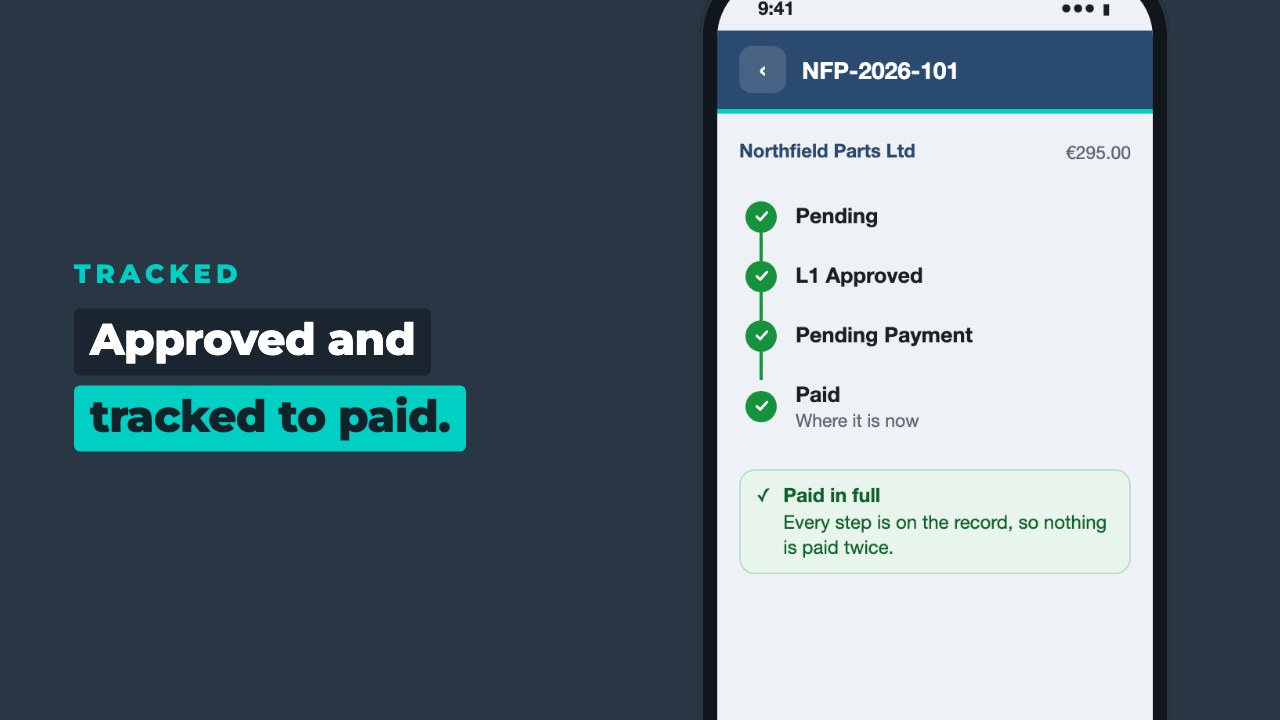
Approved and tracked to paid
The approver signs it off, finance approves the payment, and the status follows it to Paid when the payment file comes back from your accounts.
Quick to submit, complete for finance
Staff who receive invoices
- Snap a photo or upload the invoice file
- Or forward the email to your invoice mailbox, and it is read the same way
- No typing of suppliers, totals or lines
- Fix any field the app read, if they need to
- Pick the vehicle, or split lines across several
- Submit, then start the next one straight away
Accounts, approvers and finance
- Check and correct invoices that arrive by email
- Approve the invoice, then approve the payment, in full or in part
- Approvers get one email a day with what is waiting, not one per invoice
- Export approved invoices for your accounting software, marked so you can see what has gone
- Upload the payment file and invoices update to paid or part paid
- Get an alert for any payment the app could not match
Made for teams with invoices coming in every day
Runs in your Microsoft 365
Your team signs in with the work account they already have. No new logins.
Your data stays yours
Invoices and payments are kept in your own Microsoft 365, not on our servers.
Works with your accounts
Approved invoices go out as a file for your accounting software, and payments come back the same way.
FAQs
How do we get the Invoice app?
Book a demo. We talk through how invoices reach you today, take one of your real invoices through the app with you and agree the set-up with you.
Do we need Microsoft 365?
Yes. The Invoice app runs inside your Microsoft 365, so your team signs in with the work account they already have and your data stays in your tenant. If you don’t have Microsoft 365 yet, we can help you set it up.
What if the app reads something wrong?
Every field can be changed before it is submitted. The lines must also add up to the invoice net or total, so a wrong figure is caught on the spot.
Can one invoice cover several vehicles?
Yes. Pick more than one vehicle and the app asks which vehicle each line is for.
What stops an invoice being paid twice?
If the invoice number and supplier are already there, the app updates that invoice instead of adding a second one. Exported invoices are marked as exported, and a payment that has already been applied is not applied again.
Does it work with our accounting software?
Approved invoices are exported as a file for your accounting software. When you upload the payment file it sends back, each invoice is marked paid or part paid.
What happens to our data if we stop?
It stays in your Microsoft 365. Nothing is held on our servers.

William, Founder
See the Invoice app on your own invoices
Book a demo. We will take one of your supplier invoices through the app with you, from the photo to paid, and show how it would fit your team.